
InvoWH Translator - User Guide
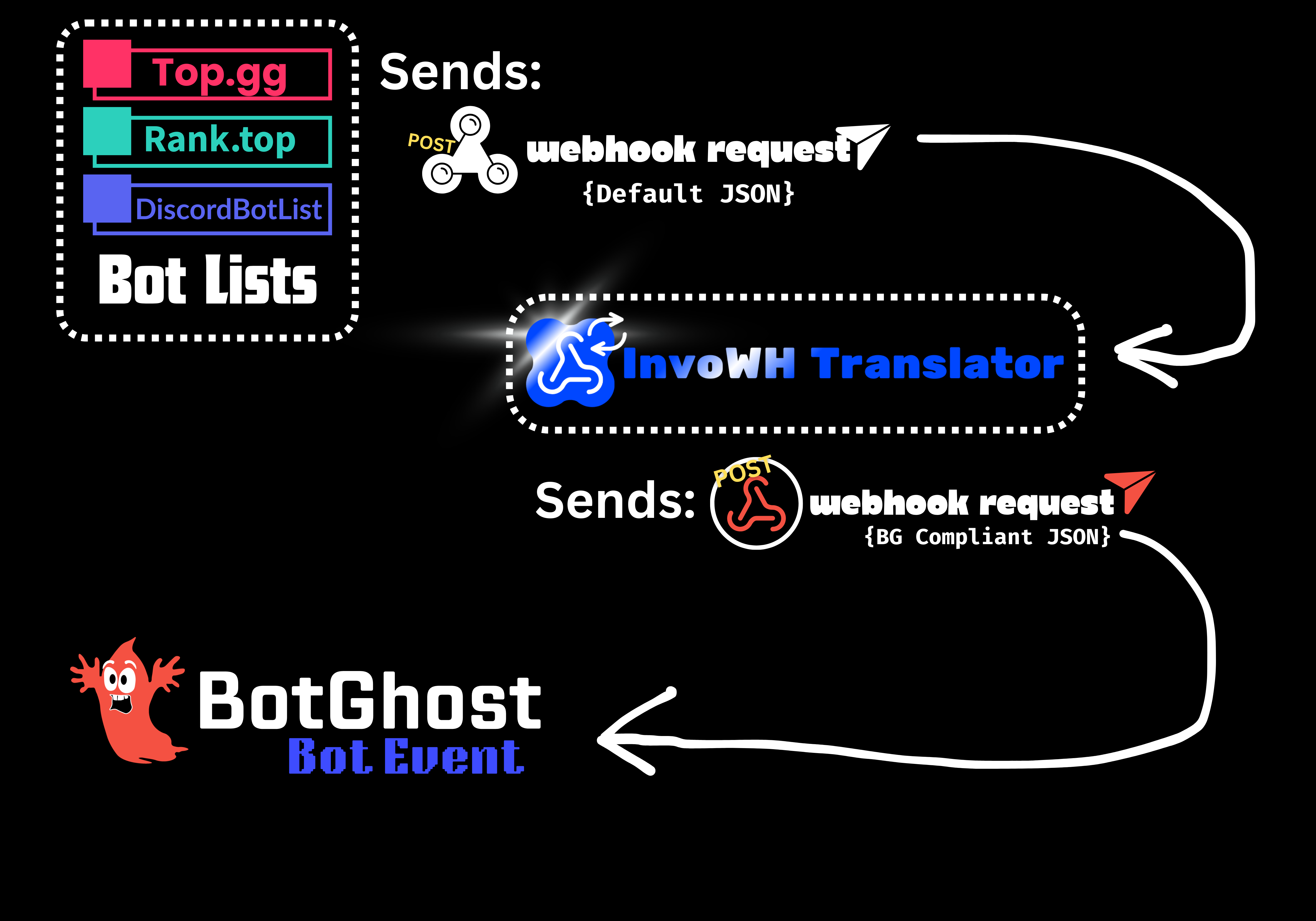
Welcome to the InvoWH Translator! This service acts as a bridge between voting sites (like Top.gg and Rank.top) and your BotGhost bot, allowing you to trigger custom events and rewards when users vote for your bot.
How it Works
- Vote Received: A user votes for your bot on a site like Top.gg.
- Translation: The vote is sent to InvoWH Translator, which verifies it’s legitimate.
- Trigger: InvoWH Translator forwards the vote to your BotGhost bot as a Custom Event.
- Reward: Your BotGhost bot executes the actions you’ve set up (e.g., sending a message, giving a role).
Why do I need this tool?
Voting sites like Top.gg and Rank.top send data in a specific format that BotGhost cannot understand directly.
- Voting Sites send a complex JSON object (e.g.,
{"user": "123", "type": "upvote"}). - BotGhost requires a specific “Custom Event” format with a list of variables (e.g.,
[{"name": "voter_id", "value": "123"}]).
Without InvoWH Translator, if you pointed a voting site directly to BotGhost, the request would fail or you wouldn’t be able to access any of the data (like who voted). This tool acts as a bridge, translating the “foreign language” of the voting site into something BotGhost can read and use.
Setup Guide
Step 1: Prepare BotGhost
Before contacting the admin, you need to set up the receiving end on BotGhost.
- Go to your BotGhost Dashboard.
- Navigate to the Custom Events module.
- Create a new event (e.g., “Vote Received”).
- Copy the Webhook URL provided by BotGhost for this event.
- Create a Secure Token (a random password or string) that you will use to secure your dashboard. Keep this safe!
Step 2: Contact Admin
Contact @magicgamer to register your bot. You will need to provide:
- Your Bot’s Name/Prefix (e.g.,
mybot). - The BotGhost Webhook URL (from Step 1).
- Your Secure Token (from Step 1).
- Your Bot ID (Developer Mode -> Right click bot -> Copy ID).
The admin will set up your instance and provide you with:
- Top.gg Authorization Token
- Rank.top Authorization Token
- DiscordBotList Secret
- Your InvoWH Base URL (usually
https://invowh.services.invomagic.com)
Step 3: Configure Voting Sites
Once you have your tokens from the admin, configure the voting sites.
Top.gg
- Go to Top.gg and navigate to your bot’s page.
- Click Edit Bot and find the Webhooks section.
- Webhook URL:
https://invowh.services.invomagic.com/<YOUR_PREFIX>/topgg - Authorization: Paste the Top.gg Authorization Token provided by the admin.
Rank.top
- Go to Rank.top and navigate to your Dashboard.
- Click Edit on your bot’s listing and go to the Webhooks tab.
- Webhook URL:
https://invowh.services.invomagic.com/<YOUR_PREFIX>/ranktop - Authorization: Paste the Rank.top Authorization Token provided by the admin.
DiscordBotList.com
- Go to DiscordBotList.com and navigate to your bot’s page.
- Click the Edit button.
- Webhook URL:
https://invowh.services.invomagic.com/<YOUR_PREFIX>/dbl - Webhook Secret: Paste the DiscordBotList Secret provided by the admin into the “Webhook Secret” field.
Step 4: Configure BotGhost Actions
Now that the connection is made, you can use variables in your BotGhost Custom Event to reward users.
| Variable | Description |
|---|---|
{voter_id} | The ID of the user who voted. |
{vote_type} | The type of vote (usually upvote). |
{provider} | The site the vote came from (top.gg, rank.top, etc). |
{voted_bot_id} | The ID of the bot that received the vote. |
{voter_username} | (DBL) The username of the voter. |
{is_weekend} | (Top.gg) “true” if it’s a weekend (double votes). |
{query} | (Top.gg) Any query parameters. |
{is_test} | (Rank.top) “true” if this is a test vote. |
Example Action:
- Send Message: “Thanks for voting, <@{voter_id}>! You voted on {provider}.”
Step 5: Using the Dashboard
The InvoWH Dashboard provides a comprehensive view of your bot’s voting performance and health.
Accessing the Dashboard:
- Navigate to:
https://invowh.services.invomagic.com/dashboard - Bot Prefix: Enter the prefix you registered with (e.g.,
mybot). - Token: Enter the Secure Token you generated in Step 1.
Key Metrics
At the top of the dashboard, you’ll see a snapshot of your bot’s performance:
- Total Votes: The total number of votes received across all platforms.
- Success Rate: The percentage of votes successfully forwarded to BotGhost. A rate below 100% usually indicates an issue with your BotGhost webhook configuration.
- Avg Speed: The average time (in milliseconds) it takes for InvoWH to process a vote and receive a confirmation from BotGhost.
Visualizations
- Vote Activity (30 Days): A line chart showing your daily vote trend over the last month. Use this to track growth or the impact of announcements.
- Peak Activity: A bar chart showing which hours of the day your users vote the most. You can toggle between Local Time and UTC using the switch in the top right corner.
- Provider Breakdown: A comparison of how many votes you receive from each site (Top.gg, Rank.top, DBL) over the last 24 hours, 7 days, and 30 days.
Troubleshooting & Tools
- Recent Errors: A log of the last 50 failed requests. If your Success Rate drops, check this section to see error messages (e.g., “BotGhost Error: 500”, “Unauthorized”).
- Export Data: Click the Export CSV button to download a detailed spreadsheet of your daily voting stats, perfect for offline analysis or reports.
- Quick Copy: A section listing your active webhook URLs, allowing you to quickly copy them if you need to update a voting site configuration.
Support
If you encounter any issues or need to rotate your tokens, please contact @magicgamer.